Happy Scribe is an online platform for transcription and subtitles. It offers automatic transcripts, human-made transcription and subtitles, and a browser-based subtitle editor, which makes it popular with video teams, broadcasters and content creators.
Transcription App takes the opposite approach. It is a desktop application that runs the speech recognition models on your own computer, so your recordings and footage are never uploaded anywhere. It includes its own subtitle editor, and it is freemium: the free mode is free forever and transcribes complete recordings with Whisper Base.
If you are looking for an alternative to Happy Scribe because your footage is unreleased, because your interviews are confidential, or because you want to subtitle offline, this guide explains how the two differ and where each one fits best.
Two different approaches to transcription
Happy Scribe: an online platform for transcripts and subtitles
Happy Scribe works in the browser. Files are uploaded, transcribed or subtitled on the provider’s side, and edited online, where teams can share projects. For work that needs a professional finish, human-made transcripts and subtitles can be ordered on the same platform.
That convenience depends on uploading your media. For content that is about to be published, this may not matter at all. For unreleased films, pre-broadcast episodes, client footage under NDA or confidential interviews, it is a decision worth thinking through.
Transcription App: a local desktop app
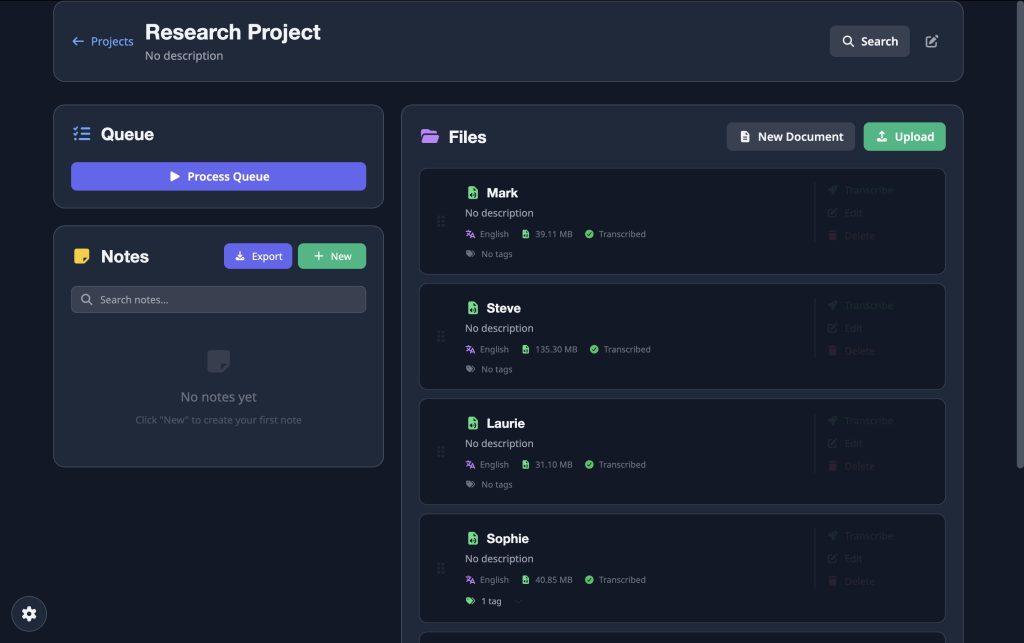
Transcription App is an application you install on macOS, Windows or Linux. OpenAI’s Whisper models and NVIDIA’s Parakeet model run directly on your computer, and your projects, recordings, transcripts and notes are stored as ordinary files in a folder you choose.
The app goes online only to check your licence and to download a model the first time you use it. After that, transcription works offline. There is no account holding your files, no dashboard in a browser and nothing to upload.
Cloud platform or local app: the main differences
| Happy Scribe | Transcription App | |
|---|---|---|
| Where your media goes | Uploaded to the provider’s servers | Stays on your computer, in a folder you choose |
| Human services | Human-made transcripts and subtitles available | Software only: AI on your computer, then you |
| Internet connection | Needed to upload, transcribe and edit | Only for the licence check and the first download of each model |
| Subtitle editing | Online editor | Desktop subtitle editor with per-subtitle styling on the video |
| Free version | See Happy Scribe’s current offer | Free forever: complete recordings, of any length, with Whisper Base |
| Platforms | Web browser | Desktop app for macOS, Windows and Linux |
Features and prices of cloud services change often, so check Happy Scribe’s own website for its current plans before you compare costs.
Why the location of your recordings matters
When you choose a transcription tool, the question is not only how accurate it is, but where your recordings end up. With any cloud service, a copy of your audio sits on infrastructure you do not control, under terms of service and retention policies you have to take on trust. Before uploading a sensitive recording anywhere, it is worth asking:
- Who at the provider, or at its subcontractors, can access the audio and the transcript?
- How long are files kept after you delete them, and where are the backups?
- Can your content be reused, for instance to improve the provider’s models?
- Does uploading the recording fit your consent forms, your contracts or your professional obligations?
With Transcription App, most of these questions do not arise, because the recording never leaves your computer. That does not replace your own obligations: you still decide where your projects are stored and how they are backed up and shared. But keeping recordings on your own machine helps you keep confidential material under your control.
Who each tool suits
Journalists
Source protection starts with where you transcribe. Transcription App lets reporters transcribe interviews, phone and video calls and press conferences on their own laptop, name each voice, check every quote against the audio with a single click, and export clean copy for an editor. Newsrooms that rely on real-time collaborative editing across a large team may still prefer a shared cloud workspace. See Transcription App for journalists.
Qualitative researchers
Ethics committees want to know where participant data goes. With local transcription, the answer is short: it stays on the researcher’s computer. Transcription App handles interviews, focus groups and fieldwork recordings in 99 languages with Whisper, and exports clean transcripts for NVivo, ATLAS.ti or MAXQDA. Researchers who also want to code their data in a private, local tool can use Qualitativist, described below. See Transcription App for qualitative research.

Legal professionals
Depositions, hearings and client interviews are among the most sensitive recordings there are. Transcription App produces working transcripts for case preparation and review without passing privileged audio through a third-party server. Where a court or tribunal requires a certified transcript, it still has to come from an approved provider. See legal audio transcription.
Film, TV and video makers
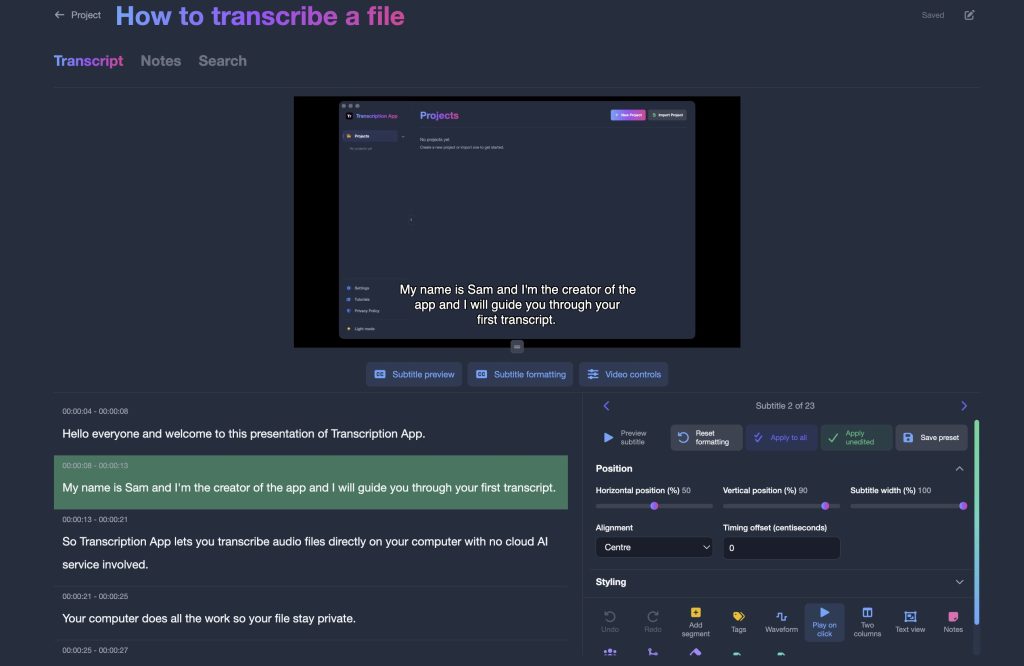
Unreleased footage and pre-broadcast episodes stay on your workstation. Transcription App’s subtitle editor turns every segment into a subtitle you can preview and style directly on your video, then export as SRT or WebVTT. See Transcription App for subtitles.
Features compared in practice
Transcription models
Transcription App includes five models, all running on your device. Whisper Base is the free-mode model: lightweight and fast. With a subscription, you can use Whisper Large Turbo, the recommended default for high accuracy with fast processing; Parakeet v3, built for speed on long recordings in 25 European languages; Whisper Medium, which favours accuracy over speed; and Whisper Small, a good balance for laptops with less memory. Whisper models cover about 99 languages.
Speed and accuracy depend on your computer and on the recording itself: microphone quality, background noise, accents and overlapping speech all play a part. The interactive demo on our home page shows the unedited output of several models on the same recording, so you can judge for yourself.
Speakers
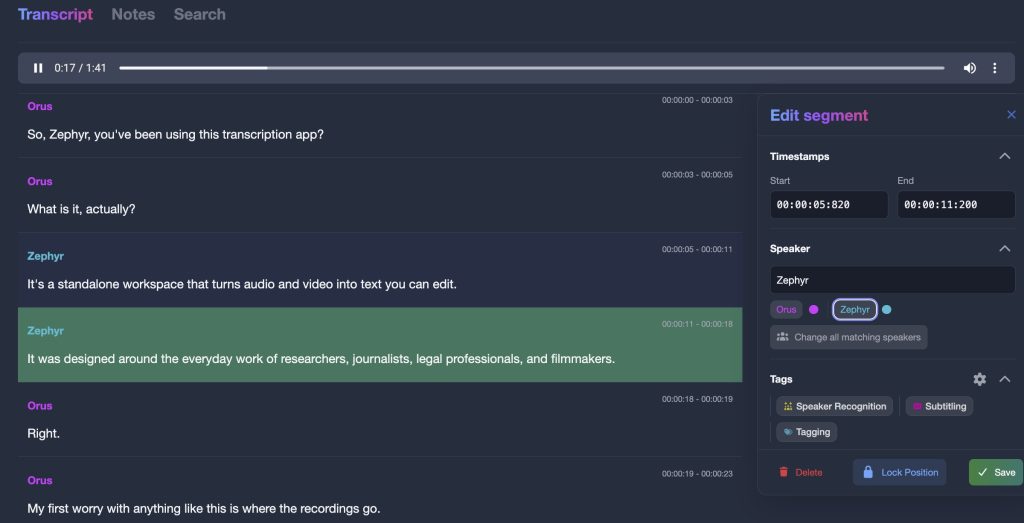
Automatic speaker segmentation splits each transcript into speaker turns. Speaker recognition then labels the rest of the file once you have named a few segments for each person, ideally three or more. Rename “Speaker 1” to “Interviewer” once and every matching segment follows, and each speaker keeps the same colour throughout the project. Speaker recognition is assisted rather than perfect, so expect to correct a few turns in noisy or crowded recordings.
Editing
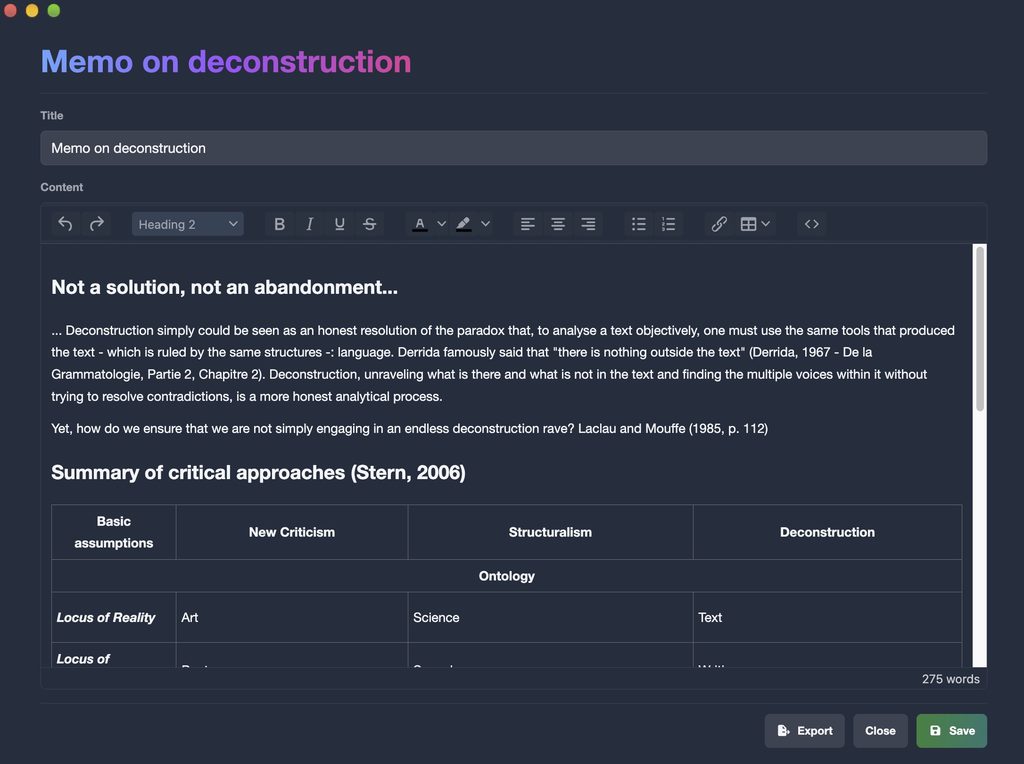
The transcript editor is built around the recording. Click a line to hear it, correct a word, split or merge segments and adjust timestamps, with undo and redo. A waveform under the transcript helps you find a passage by its sound, and keyword search works inside a transcript or across a whole project, filtered by speaker. Project notes open in their own window beside the transcript, and your edits are saved automatically.
Subtitles
In subtitle editor mode, you can style each subtitle individually: position, width, font, size, line spacing, text and background colours, outline, shadow, alignment, characters per line and timing offset. Style presets can be applied to one subtitle, to every subtitle you have not styled yet, or to all of them. External video players differ in how much WebVTT styling they display, so SRT remains the safe choice for compatibility.
Imports, exports and sharing
Transcripts export to plain text, SRT and JSON in the free mode, and to Word (.doc) and WebVTT with a subscription. You can import existing transcripts and subtitles in SRT, VTT, TXT, DOC, HTML or JSON, so work from another tool can join the same project. Transcription App is a single-user app: to share work, you export files or, with a subscription, a project archive that a colleague imports into their own copy.
When Happy Scribe may suit you better
Transcription App is software, not a service: it does not offer human-made transcripts or subtitles, translation, live transcription or collaborative editing in a browser. If you need a professionally produced subtitle file delivered to you, or several people editing the same project online, Happy Scribe offers things Transcription App does not.
It is also worth being honest about hardware. Because the models run on your machine, a very old or low-memory computer will be slower, and the largest models need more memory than the lighter ones. The free mode is the easiest way to find out what your own computer does with your own recordings.
What it costs
Transcription App is freemium. The free mode is free forever, not a time-limited trial. It includes:
- transcription of complete recordings, with no duration limit, using Whisper Base;
- unlimited projects, the transcription queue, speaker segmentation and recognition;
- the transcript and subtitle editors, notes and search;
- exports to .txt, .srt and .json, transcript imports and full-storage backups.
A monthly or yearly subscription adds the more advanced models (Whisper Large Turbo, Parakeet v3, Whisper Medium and Whisper Small), subprojects, project archives, Word exports and WebVTT exports that keep per-subtitle styling. If a subscription ends, your existing work stays accessible.
Monthly
$2.29
Yearly
$22.99
Prices are also available in your local currency!
Please contact sam@transcription-app.com for discounts on multiple licenses or if you’re representing an organization.
For qualitative researchers: Qualitativist
If you transcribe interviews or focus groups for research and also need to analyse them, our sister product Qualitativist builds on the same private, on-device transcription and adds the tools a qualitative study needs: tags for coding, advanced search with AND and OR rules, a literature library with citations in Word, research documents and web data collection. Like Transcription App, it keeps your data on your own computer.
Moving from Happy Scribe to Transcription App
- Download Transcription App for free and transcribe one of your own recordings with Whisper Base.
- Export the transcripts you want to keep from your current tool, then import them into Transcription App as SRT, VTT, TXT, DOC, HTML or JSON files, so earlier work sits alongside new recordings.
- Choose a storage folder on a normal local disk rather than inside a cloud-synced folder such as iCloud Drive, Dropbox, OneDrive or Google Drive.
- Name your speakers, correct the text against the audio, and export to the formats you need.
- Subscribe when you want the more advanced models for extra accuracy or speed.
Our tutorials walk you through each step, from creating a first project to speaker recognition and settings.
A typical week with Transcription App
Imagine a researcher with six interviews to transcribe, or a reporter coming back from a week of meetings. With Transcription App, each recording goes into a project for that study or story. You set the language of each file, switch on speaker segmentation if several people are talking, and add everything to the queue. The app works through the files one after another while you get on with something else, even on a train with no connection.
When a transcript is ready, you open it and read along with the audio. A click on any line plays the recording from that moment, so checking a name or a quotation takes seconds. You label a few segments for each speaker, run speaker recognition, and rename each voice once. Notes sit in their own window beside the transcript, so thoughts can be written down while the conversation is still fresh.
At the end of the week, you export what you need: plain text for a colleague, SRT subtitles for a video, JSON for a data pipeline, or, with a subscription, a Word document or a styled WebVTT file. The recordings and transcripts never left the laptop, and a single folder holds the whole project, ready to be backed up.
The bottom line
Happy Scribe and Transcription App both produce transcripts and subtitles, but in different places. If you want an online platform with human services, Happy Scribe is built for that. If you need an alternative to Happy Scribe that keeps your footage and recordings on your own workstation, lets you style subtitles directly on the video, works offline and starts for free, Transcription App was built for exactly that. The simplest way to decide is to try it: download the free version and transcribe one of your own recordings.