
Qualitative research is built on conversation. Interviews, focus groups, ethnographic observations, oral histories — the raw material of qualitative inquiry is spoken language, and the first challenge every qualitative researcher faces is the same: how do you turn hours of recorded speech into something you can actually analyze?
For a long time, the answer was either tedious manual transcription — listening and typing, listening and typing — or expensive professional services with long turnaround times and serious confidentiality risks. AI-powered transcription has changed that equation. Most transcription services relying on AI operate through remote servers. Your recordings are sent to data centers, processed, and returned to you, which causes a substantial breach of privacy. Transcription App proposes the same services as the likes of Trint or Otter.ai with one twist: the data never leaves your computer! Here’s how Transcription App fits into a real qualitative research workflow, from the first interview to the final analysis.
Step 1: Recording the Interview
The workflow begins before you open Transcription App. A good recording makes a good transcript. Whether you’re using a dedicated field recorder, your phone, or a laptop microphone, a few principles hold: get the microphone close to the speaker, minimize background noise, and if you’re conducting remote interviews, use software that records each participant on a separate track if possible.
Transcription App accepts a wide range of file formats — MP3, MP4, WAV, M4A, MKV and more — so you don’t need to convert audio or video files before importing. You can drag and drop directly from your file system.
Step 2: Transcribing — Fast and Locally
Once you’ve imported your file, you select a Whisper model. For most qualitative interviews, the Large V3 Turbo model offers the best balance of speed and accuracy. If your interviews involve technical language, specialized vocabulary, or non-native speakers, you may find that the larger models handle edge cases better.
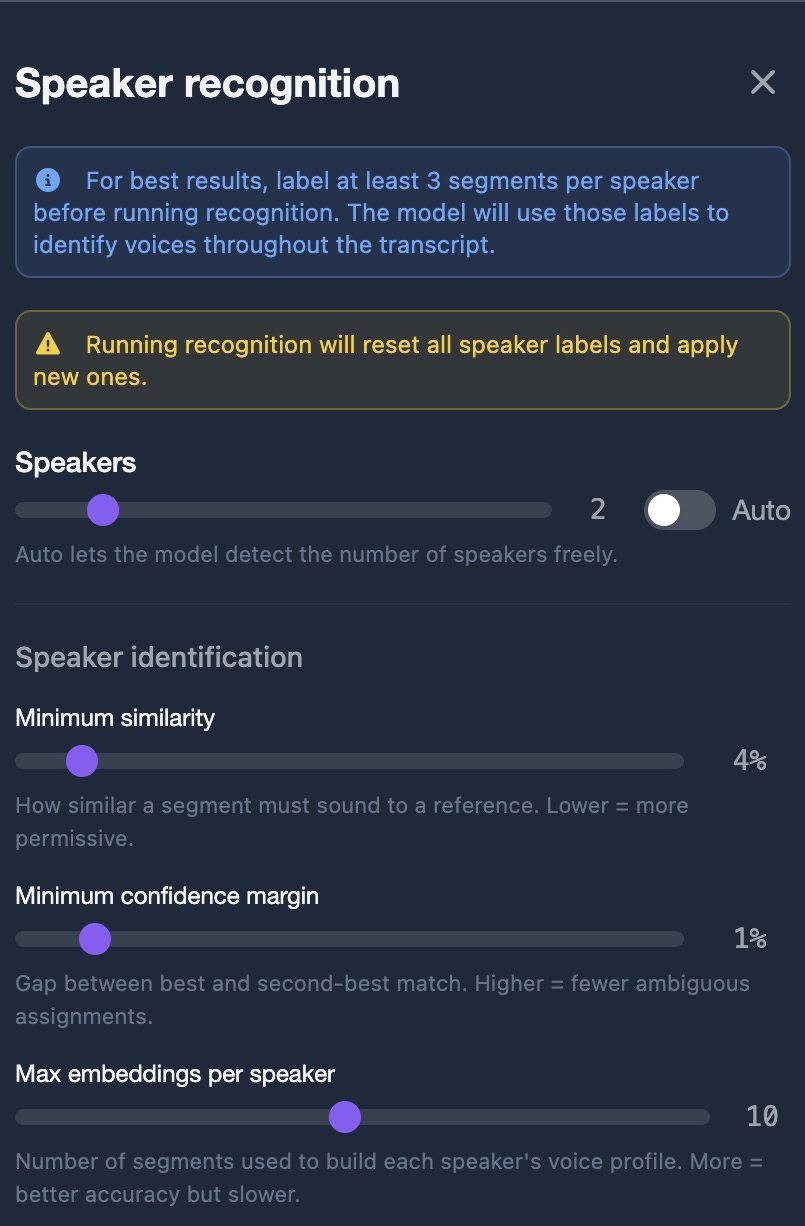
Transcription App also supports speaker recognition — automatic speaker recognition — using Pyannote’s models for speaker segmentation alongside a vectorisation model. Users report 85 to 90% accuracy depending on the quality of the audio. This is particularly valuable for interviews with multiple speakers: the app will attempt to label each segment by speaker, giving you a transcript that distinguishes between interviewer and interviewee rather than producing an undifferentiated wall of text.
Everything happens locally. Your audio file never leaves your machine. This is not a small thing for researchers: most ethics review boards and institutional data management policies require that research data — especially sensitive interview material — be handled with strict confidentiality. Uploading to a cloud transcription service may violate those requirements. Local transcription sidesteps the issue entirely.
On a modern Mac with Apple Silicon, a one-hour interview typically transcribes in five to seven minutes. On a Windows machine with a modern GPU, performance is similar. CPU processing with an Intel processor from 2020 can reach up to x3 speed — 3 times faster than real time. This means that by the time you’ve made a cup of tea, your transcript is ready.
Step 3: Reviewing and Editing the Transcript
No AI transcription is perfect, and qualitative researchers often work with challenging material: thick accents, overlapping speech, specialized terminology, or emotional moments where voices crack or trail off. Transcription App’s built-in editor lets you review and correct the transcript while listening to the audio, with the playhead synchronized to the text. However, we can boast accuracy of 90+% depending on audio quality.
Here’s an example of how an unprocessed transcript may look like on our Whisper models
The transcription took 8 seconds on a MacBook Pro with the M1 Pro chip and 16 GB of RAM.
You can click on any segment in the transcript to jump to that point in the audio. This makes it fast to check uncertain passages, verify how someone phrased something, or confirm a name or technical term. The editor supports playback speed adjustment, so you can slow down difficult passages without losing too much time.
For verbatim transcription — which many qualitative traditions require — you can mark hesitations, false starts, and non-verbal cues manually. The goal is to produce a transcript that faithfully represents not just what was said, but how it was said.
Step 4: Tagging and Coding
This is where Transcription App starts to look less like a transcription tool and more like a research assistant. Once you have a clean transcript, the app’s tagging functionality allows you to annotate segments of text with custom tags — the equivalent of thematic codes in traditional qualitative analysis.
You select a passage, apply a tag, and the segment is marked. Over the course of multiple interviews, you build up a coded corpus: every passage tagged « power dynamics, » or « institutional memory, » or « coping strategies, » or whatever your analytical framework requires, becomes retrievable. You can search across your entire project by tag, pulling together all the passages from all your interviews where a particular theme appears.
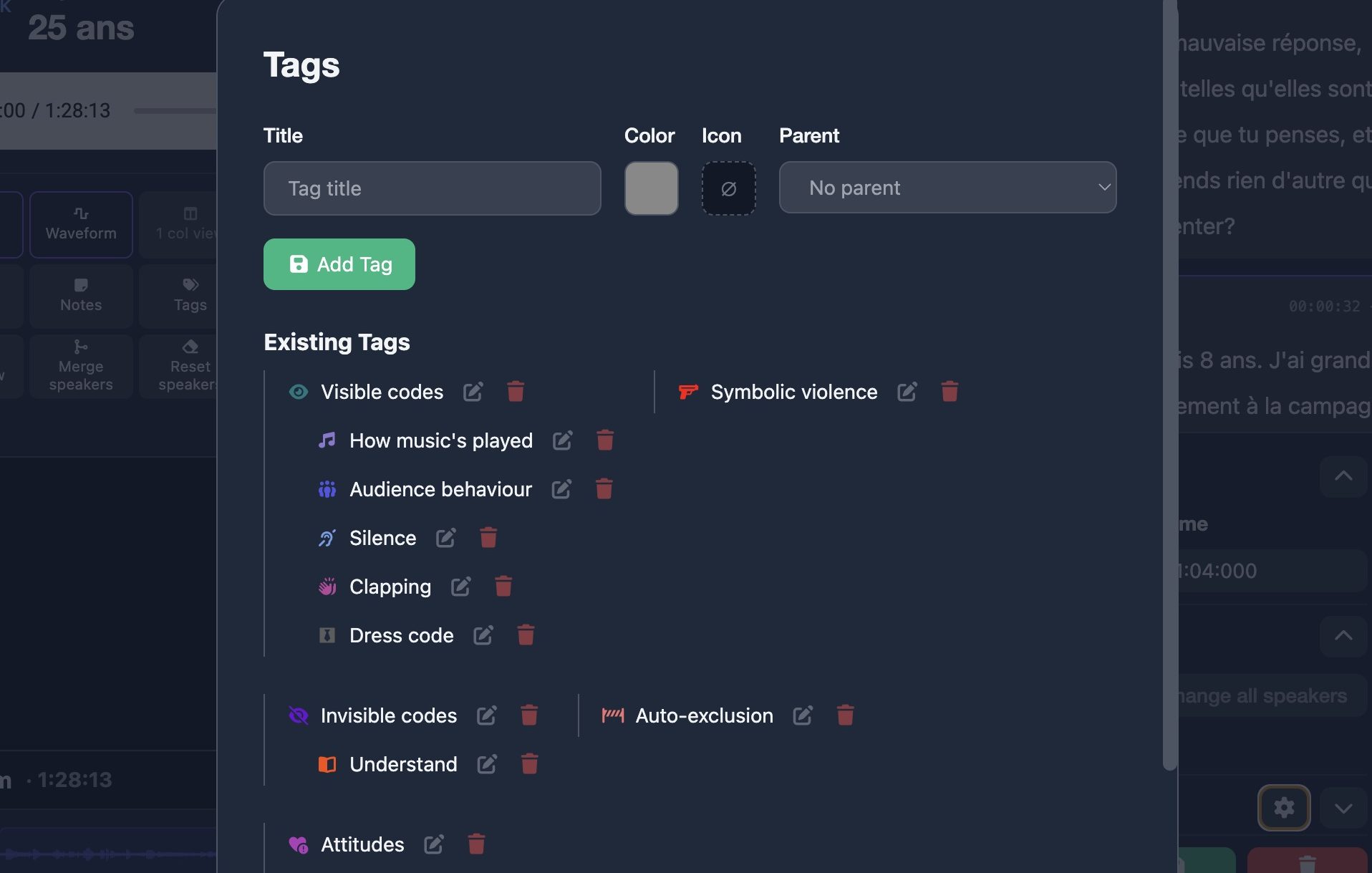
This is a significant workflow improvement over the traditional approach of printing transcripts and color-coding them with highlighters — or, more commonly, copying excerpts into separate documents organized by theme. With Transcription App, the tagging is embedded in the transcript itself, and the search is instant.
The tagging system is flexible enough to support a range of methodological approaches. For grounded theory researchers who develop codes inductively from the data, the ability to create new tags on the fly and apply them retroactively is essential. For researchers working with a predetermined codebook, the ability to define tags in advance and apply them consistently across a large corpus is equally valuable.
Step 5: Searching Across Projects
Qualitative research often involves large amounts of data. A dissertation might draw on thirty interviews; a multi-year ethnographic project might involve hundreds of field recordings. The ability to search across all of them at once — not just by tag, but by keyword, by speaker, by date — transforms what would otherwise be a needle-in-a-haystack problem into a manageable analytical task.
Transcription App’s search functionality works across your saved projects, allowing you to find every instance where a particular word or phrase appears across your entire corpus. Combined with the tagging system, this gives you two complementary routes into your data: the systematic route of coded themes, and the exploratory route of full-text search.
Step 6: Exporting for Writing and Collaboration
When it’s time to write up your analysis, you need your transcripts in a format that works with your writing environment. Transcription App exports to .txt and .doc, both of which import cleanly into Word, Google Docs, Scrivener, or whatever writing tool you prefer. You can export individual transcripts or batch-export an entire project.
For researchers working in teams, the archiving feature allows you to save and share projects across devices. A research assistant can work on transcription and tagging on their own machine, export the project file, and send it to the lead researcher — who can import it and continue the analysis without any loss of data or structure.
Why It Matters That This Runs Locally
Qualitative research data is sensitive by definition. Interviews often contain personal disclosures, political opinions, health information, or accounts of trauma. Research participants have a right to expect that their words will be handled with care — and researchers have an ethical obligation to honor that expectation.
The local architecture of Transcription App isn’t a technical footnote. It’s a research ethics position. Your data stays on your machine. It doesn’t pass through anyone else’s servers. It can’t be accessed, indexed, retained, or used for any purpose by any third party. That’s what data sovereignty looks like in practice — and for qualitative researchers, it matters.